
By Accountrix Solutions · Updated November 2026
You can change an Odoo invoice template at four levels: the document layout in Settings (logo, colors, layout, font, footer), the content settings built into Odoo (payment terms, default terms and conditions, bank account, customer reference), the Studio report editor for layout and extra fields, and a developer’s custom template for deeper changes. Most businesses need only the first two. Changes to how an invoice looks and reads are safe. Changes to tax lines, numbering or amounts need care, because the PDF must always match what is booked in your accounts. This guide shows each level, a safe-or-risky chart from an accountant’s point of view, and when to call a developer.
- The Odoo invoice template has four levels of change: document layout, built-in settings, Studio and a developer.
- Logo, colors, wording, reference numbers and bank details are safe to change.
- Tax display, numbering and amounts need a check with your accountant first.
- Odoo can keep the first PDF generated for an invoice, so a new layout does not have to rewrite old invoices.
- On Odoo Online, custom modules are not allowed, so Studio is your deepest option.
What an Odoo invoice template is made of
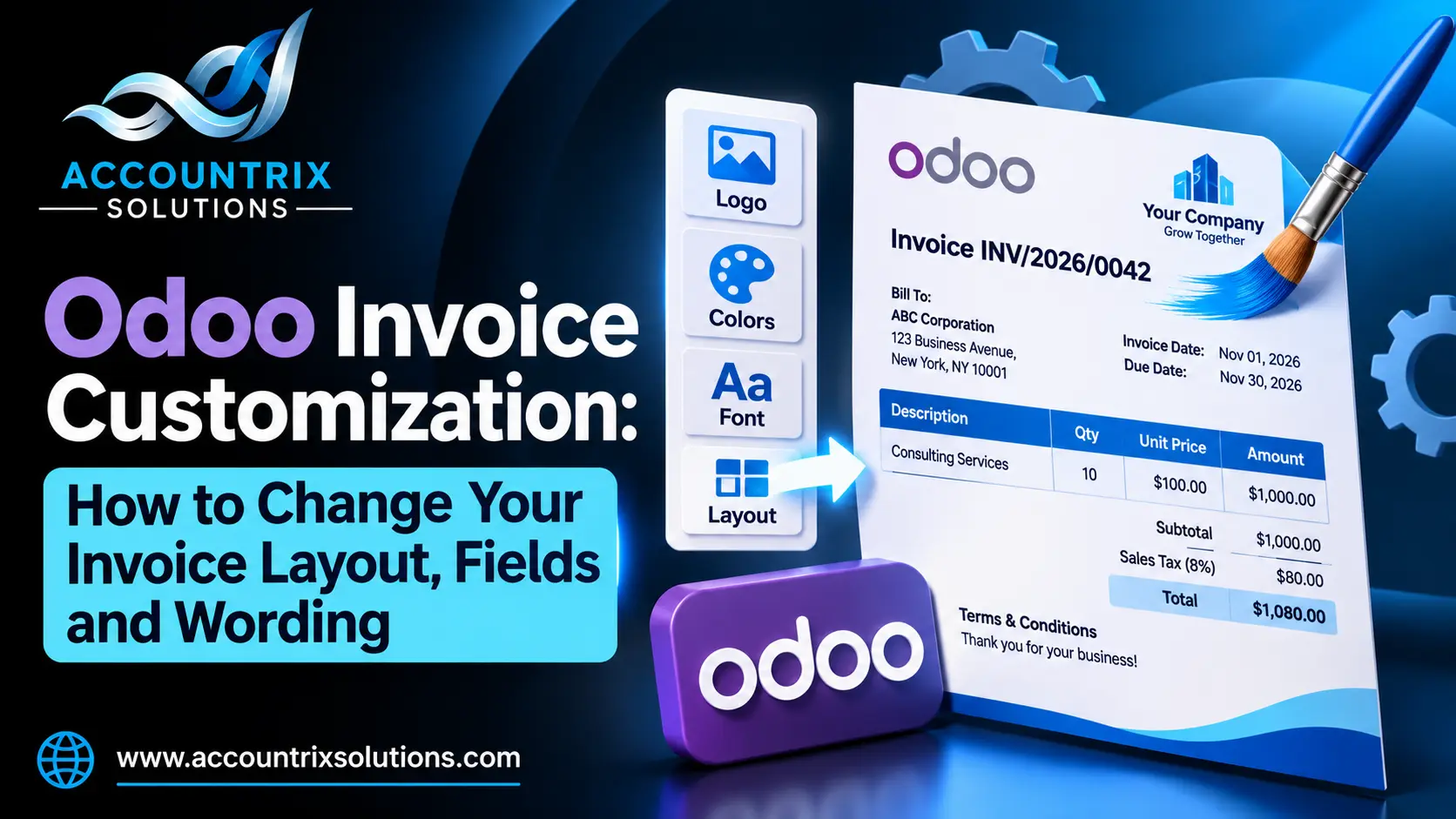
An invoice PDF in Odoo is a view of the invoice you posted. The numbers come from the booked entry, and the template decides how they are laid out. Here is a simplified invoice, with the parts you can change numbered. The key below the picture tells you where each one lives.
- 1Logo, colors, layout, font: Settings, then Configure Document Layout.
- 2Company name, address, tagline: the same layout screen.
- 3Customer reference (PO number): a field on the invoice and the sales order.
- 4Columns and labels: the Studio report editor.
- 5Tax lines: set in your tax configuration, and shown by the template.
- 6Payment terms wording: the payment term record.
- 7Bank details and terms and conditions: the layout screen and the Accounting settings.
The four levels of changing an Odoo invoice template
| Level | What you can change | Who can do it | Good to know |
|---|---|---|---|
| 1. Document layout | Logo, colors, layout, font, address, tagline, footer, paper size | An administrator | Applies to all reports of the company, not only invoices |
| 2. Built-in settings | Payment terms wording, default terms and conditions, bank account, customer reference | An accountant or administrator | No code, no Studio |
| 3. Studio report editor | Fields, columns, labels and blocks on the invoice PDF | A careful power user | Studio is part of Odoo Enterprise |
| 4. A developer | Logic, special tables, different templates per customer or company | A developer | Not possible as a custom module on Odoo Online |
Level 1: change the logo, colors and layout of your Odoo invoice template
This is the easiest change and the one most people want first. In Odoo, open the Settings app, find the Companies section and click Configure Document Layout. A preview on the right shows how each setting affects the report. Odoo’s documentation lists these options:
- Logo and colors. The primary and secondary colors are generated from your logo by default, and you can change them.
- Layout. Choose a style such as Light, Boxed, Bold or Striped. Newer versions add more.
- Font. A short list of fonts is available.
- Address and tagline. The company name and address show in the header, and the tagline shows in the header or the footer, depending on the layout.
- Paper format. A4 or US Letter. US businesses should choose US Letter.
- Tax ID and bank account number. Both can print on the report. The bank account comes from the company’s main bank journal, and the documentation notes that updating one updates the other.
One catch: these settings apply to all reports of the company, so check quotations, delivery slips and other documents after you change them, not only invoices.
Level 2: add the details customers look for
Most invoice complaints are about missing information, not about design. Odoo already has a place for most of it:
| You want to show | Where to set it | Tip |
|---|---|---|
| PO number | The customer reference on the sales order or invoice | Check that it prints on the PDF. If not, add it in Studio. |
| Payment terms wording | The payment term record | Write plain words, such as “Payment due within 30 days of the invoice date”. |
| Remit-to details | The bank account on the layout screen | It comes from the main bank journal, so keep that account correct. |
| Terms and conditions | Accounting settings, under Customer Invoices | Odoo’s docs say they then appear on every quotation, sales order and invoice. |
| The email that carries the invoice | The invoice email template | This is a separate template from the PDF, so edit both. |
Keep the wording short. A customer who understands the invoice pays it faster, and a clear due date and remit-to block do more for your cash than any logo.
Level 3: edit the invoice PDF with the Studio report editor
Studio lets you edit existing PDF reports, such as invoices, or create new ones. Odoo’s documentation strongly recommends that you duplicate the standard report and make your changes in the copy. Here is the order that works:
- Open an invoice, turn on Studio, and click Reports.
- Duplicate the standard invoice report, and give the copy a clear name.
- Edit static text directly. Text highlighted in blue is dynamic and filled from the record, such as the invoice number.
- Type a slash to open the command list, and add a field, a column or a table.
- Use Print preview to see the result.
- Limit who can use the new report, if only some users should see it.
- Test with real invoices before you switch anyone over to it.
Three limits are worth knowing. The dashed rectangles in the editor are conditional blocks, which show or hide content, and their conditions can only be edited in the XML. Changing the header or footer affects all standard and custom reports. And the Reset report button returns a report to its standard version, which is your safety net.
Level 4: when you need a developer
Studio covers most needs, but some changes need code. Ask a developer when you need:
- Logic that depends on the customer, country or product
- Different invoice templates for different companies or customer groups
- Special tables or calculations, such as a second currency total
- Changes the Studio editor cannot make
Two facts matter before you start. Odoo’s documentation says Odoo Online does not allow custom modules, so on Odoo Online your options end at Studio. And Odoo’s upgrade documentation says a database with custom modules cannot be upgraded until a version of those modules exists for the target version, so every custom template adds cost to your next upgrade. Ask if a setting or a Studio change can do the job first. Our Odoo customization services team can tell you which side of that line your request falls on, and build it so it survives upgrades.
Odoo invoice customization: what is safe and what is not
This is the part most guides skip. The look of an invoice is yours to change. The numbers on it are not, because the PDF must match the entry in your books. Use this chart before you change anything:
- Logo, colors, font and layout style
- Address, tagline and footer text
- Customer reference (PO number) on the invoice
- Payment terms wording
- Default terms and conditions text
- Bank and remit-to details
- Column labels and column order
- How tax lines are grouped and labelled
- Hiding discounts or unit prices
- Currency symbols and number formats
- Late-fee or legal wording
- Due-date wording, next to the real due date
- Showing amounts on the PDF that differ from the booked entry
- Changing invoice numbering mid-year without a plan
- Editing a posted or sent invoice, instead of issuing a credit note
There is also a protection built into Odoo. In Studio’s report options, “Reload from attachment” saves the PDF the first time it is generated and reloads that original version later. Odoo’s documentation describes this as legally required for invoices. So an invoice you already sent keeps its original look, even if you change the template later. Check that this option is on for your invoice report.
Invoice numbering: what you can change and the traps
When you confirm an invoice, Odoo generates a unique reference. By default, the format is INV/year/number, for example INV/2026/00001, and it restarts from 00001 each year. Odoo’s documentation shows three ways to work with it:
- Change the format. Open the last confirmed invoice, click Reset to Draft, and edit its reference number. Odoo then explains how the detected format will apply to future invoices. Adding the month, for example, changes the sequence to restart every month.
- Resequence in bulk. Turn on developer mode, open the Customer Invoices journal, select the invoices, and choose Resequence. This is only available to administrators and advisors, and is useful when you import invoices from another system and need to keep continuity for the year.
- Review gaps. Odoo flags irregularities, such as gaps or cancelled entries, so you can explain them.
Resequencing does not work for entries before a lock date, when it creates a duplicate, or when the range is invalid, for example a 2025 invoice in a 2024 sequence. Odoo also logs reference changes in the chatter. Rules for invoice numbers differ by country, and many require unique, sequential numbers. Even where nothing requires it, a clean sequence makes audits and reconciliations easier. Before you change a format, ask your accountant. Our Odoo bookkeeping team reviews numbering and tax lines before a template goes live, so the change does not cause trouble at the next close.
Tax lines on the invoice template
Tax is the one part of an invoice that has legal weight in most places, so treat it carefully. Two things are easy to mix up:
- What the customer sees. The tax label and layout on the PDF. You can change the look, as long as the tax amount is clearly shown.
- How the tax is calculated. This is set in the tax configuration and in fiscal positions, not in the template. Editing the template to hide or alter a tax figure does not change what is booked.
If a customer needs tax shown differently, for example one line per jurisdiction, change the tax setup first and let the template follow. If the PDF and the accounts ever disagree, the PDF is wrong, not the accounts.
How to change your Odoo invoice template safely
- Work on a copy of the database first. Never test on live invoices.
- Save a sample. Download a recent invoice PDF as your “before” version.
- Change the layout and wording. Use Level 1 and Level 2 settings before Studio.
- Add missing fields. Use Studio only for what the settings cannot do.
- Test different invoices. Try a credit note, an invoice with a discount, one with several tax lines, and one in a foreign currency.
- Check the totals against the entry. The PDF total, tax and number must match the journal entry.
- Confirm old invoices are unchanged. Open one that was sent last month.
- Roll it out. Make the change in production, and tell the team what changed.
Mistakes to avoid when you customize Odoo invoices
Duplicate it first, so you can always go back.
Credit notes, discounts and foreign currencies behave differently.
The layout settings change quotations and delivery slips too.
Customers and tax rules need the tax amount shown clearly.
Gaps and duplicates make every audit harder.
Custom changes must be re-tested when you move to a new version.
Frequently asked questions
How do I change the invoice template in Odoo?
For the look, open Settings, click Configure Document Layout in the Companies section, and change the logo, colors, layout, font, address and footer. For content, use the built-in settings such as payment terms, default terms and conditions and the bank account. For deeper changes, use the Studio report editor or ask a developer.
Where do I add my logo to an Odoo invoice?
Go to Settings, find the Companies section, click Configure Document Layout and upload the logo. The colors are generated from the logo by default, and the layout settings apply to all reports of that company.
Can I add a PO number to an Odoo invoice?
Yes. Use the customer reference on the sales order or invoice, and make sure it prints on the PDF. If your template does not show it, add the field in the Studio report editor.
Can I change the invoice number format in Odoo?
Yes. By default Odoo uses INV/year/number and restarts every year. To change it, open the last confirmed invoice, reset it to draft and edit the reference number. Odoo explains how the new format will apply to future invoices. Check with your accountant first.
Does changing the layout change old invoices?
Not if the report reloads from the saved attachment. Odoo’s Studio documentation says this option saves the PDF the first time it is generated and reloads that original later, and that it is legally required for invoices. Check that it is on for your invoice report.
Do I need Studio to customize an Odoo invoice?
No. The document layout and the built-in settings cover logo, colors, address, footer, payment terms and terms and conditions. Studio, which is part of Odoo Enterprise, is for changing the report itself, such as adding fields or columns.
When do I need a developer to change an Odoo invoice?
For conditional logic, different templates per customer or company, special tables or calculations, and anything Studio cannot do. On Odoo Online, custom modules are not allowed, so deeper changes are limited to what Studio can do.
Final thoughts
A good Odoo invoice template makes an invoice clear, correct and consistent. Change the look and the wording as much as you like, add the fields your customers ask for, and leave the numbers to the accounts. Start with the layout and the built-in settings, use Studio for what is left, and call a developer only when the first two levels cannot do the job. If you stay on the safe side of the chart, your invoices look the way you want, and your books keep matching.
Not sure whether your invoice change is safe? Tell us what you want to change, and we will tell you which level it needs.
Tell us what you want to change on your Odoo invoice

1 Comment