
Odoo Bank Reconciliation: How It Works and How to Fix Unmatched Transactions
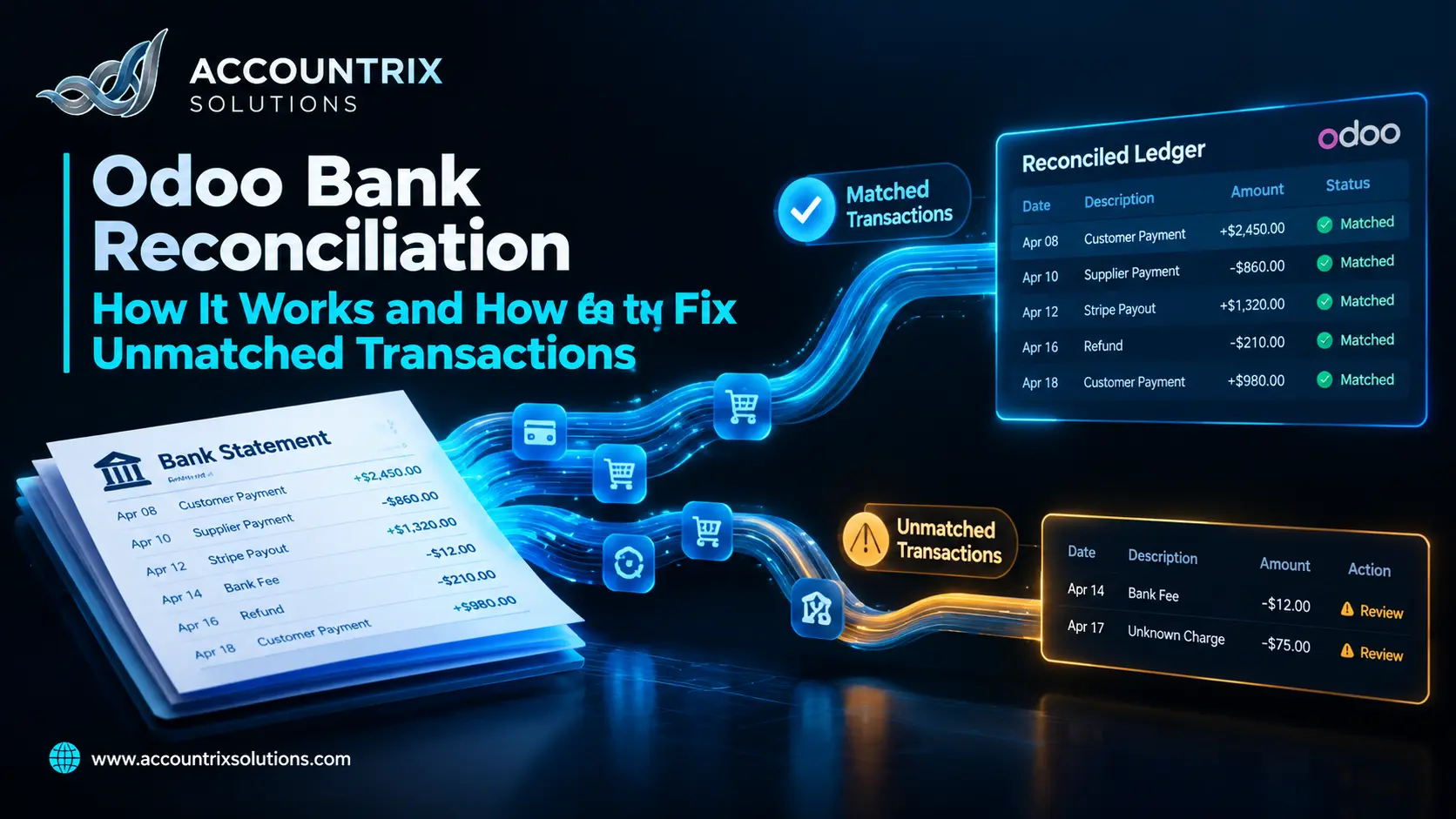
Odoo bank reconciliation means matching every line on your bank statement with a record in your books, such as a customer payment, a vendor payment, or an entry for something like a bank fee. Odoo imports the bank lines, tries to match them on its own, and leaves the rest to you. Until a line is matched, it sits on the bank journal’s suspense account, so a long list of unmatched lines means your cash figures are not reliable yet. This guide explains how the process works in current Odoo versions, the three ways a transaction gets matched, how to fix the ones that refuse to match, and a month-end routine you can repeat.
What Odoo bank reconciliation does, and why it matters
Your bank statement shows what really happened to your money. Your books show what you recorded. Reconciliation compares the two and points out every difference so you can fix it. In Odoo, each bank account has its own bank journal, and the reconciliation screen works on one journal at a time.
A proper reconciliation catches:
- Payments received but never applied to an invoice
- Bills paid twice, or paid and never recorded
- Bank fees and interest nobody booked
- Duplicate or missing imports
- Charges you do not recognize
It also backs up your tax records. The IRS recordkeeping guidance for small businesses says supporting records should generally be kept for three years, and longer for employment tax. A reconciled bank account is the proof behind the numbers in those records.
How bank transactions get into Odoo
Reconciliation starts with the bank lines. Odoo can receive them in three ways:
| Method | How it works | Good to know |
|---|---|---|
| Automatic bank synchronization | Odoo connects to your bank through a third-party provider and fetches transactions for you. | Odoo’s documentation says it needs an Odoo Enterprise subscription, and not every bank is supported. |
| File import | You download a statement from your bank and upload it. Formats such as CAMT, CODA, CSV, OFX and QIF are supported. | Works with any bank that exports a file, but you repeat it every time. |
| Manual entry | You type the lines yourself. | Only sensible for very low volume. |
Be careful when you mix methods. When synchronization is first set up, Odoo starts recording from the day after the last transaction it already holds. If you also import a file for the same dates, you get duplicates, and every duplicate becomes an unmatched line.
Card processors and payment gateways such as Stripe or PayPal usually pay out in batches, so their data often needs its own connection. If your bank or gateway is not supported out of the box, our Odoo integration services team can connect it so the lines arrive in Odoo on their own.
The reconciliation screen, step by step
In current versions, you reach it from the Accounting dashboard by selecting the bank journal. Odoo’s documentation calls it the bank matching view. Unmatched transactions are listed, and each one can be expanded to show the actions available for it. This is a simplified picture of what you work with:
- Open the Accounting dashboard and select the bank journal, or its Transactions button.
- Expand a line among the unmatched transactions. Odoo shows the actions that apply to it.
- Pick the counterpart: an invoice, a bill, a payment, or a reconciliation model button.
- Check that the difference is zero, or that you know exactly why it is not.
- Validate. The line leaves the suspense account and is marked as reconciled.
If you match something wrongly, you can edit the lines or unreconcile the transaction and start again, as the Odoo docs on bank reconciliation describe.
Three ways a transaction gets matched
| Method | What triggers it | Best for |
|---|---|---|
| Default matching | Odoo compares fields such as amount and partner with open invoices, bills and payments. | Customer payments and vendor bills with clean references |
| Reconciliation model | A rule, either a default or one you create, that runs automatically or appears as a one-click button. | Repeating items such as bank fees, interest and cash discounts |
| Manual matching | You choose the counterpart items yourself. | One-off items, batch deposits and odd cases |
How reconciliation models work
- You find them from the bank journal’s dropdown on the Accounting dashboard, under Models in the reconciliation section.
- A model is either manual, which shows up as a button while you reconcile, or automated, which applies itself when a transaction meets its conditions.
- If several automated models fit one transaction, the first one in the sequence wins.
- Which default models you get depends on your fiscal localization. A common one is Bank Fees, which only applies to transactions whose label contains “Bank Fees”.
Here is how a simple model could look. The values are an example, and field names can differ slightly between versions.
Good models are the biggest time saver in Odoo bank reconciliation, but a wrong rule can post items to the wrong account every single month. Our Odoo bookkeeping services team sets models up and checks them against your real statements.
Why a bank transaction will not match, and what to do
Most unmatched lines fall into a handful of patterns. Find yours here:
The amounts differ by a small number
Why: a processor or bank took a fee out of the payment.
Fix: reconcile the payment and book the difference to a fees account, ideally through a model.
One bank line covers many invoices
Why: a batch deposit, or a payout from a payment processor.
Fix: select every invoice or payment inside it, and check that the difference is zero.
Several bank lines pay one invoice
Why: the customer paid in installments.
Fix: reconcile each part. The invoice stays open for the remaining balance until the last payment arrives.
The bank line has no partner
Why: the bank label does not name the customer, so Odoo cannot link it to an invoice.
Fix: add the partner on the line, then match. Rules and models can remember this for next time.
The payment was never recorded in Odoo
Why: money arrived, but nobody registered it against the invoice.
Fix: register the payment on the invoice, or reconcile the bank line directly with the invoice.
The same transaction appears twice
Why: a file import overlapped with bank synchronization, or the same file was uploaded twice.
Fix: compare dates against the bank, remove the duplicate, and stop using two sources for one account.
A fee or interest line has no document
Why: banks charge fees without sending an invoice.
Fix: use a reconciliation model that posts it to the right expense or income account.
A foreign currency payment is off by cents
Why: the exchange rate on the day of payment is not the rate on the invoice.
Fix: let the difference post as an exchange gain or loss, and review the amounts once a month.
Many matching problems start before the bank line arrives. Invoices with clear numbers and payment references are much easier to match automatically, and consistent invoicing is what our digital invoicing services team helps businesses set up.
Why older Odoo tutorials look different
Odoo has changed the reconciliation screen over the last few versions. Older documentation talks about a Reconcile items button, while the current documentation describes a bank matching view for each journal. If a tutorial shows buttons you cannot find, check which version it was written for, and which version your database runs.
If your company is on an older version, the steps in this guide may not match your screens. Moving to a current version brings the newer reconciliation tools, and our Odoo migration services team plans upgrades with data checks, so your open items and history carry over cleanly.
A month-end bank reconciliation routine for Odoo
Busy businesses reconcile every week. Everyone else should reconcile at least once a month, before closing the books. Work through this list in order:
- Bring in all bank and credit card transactions up to the statement date.
- Let Odoo run its automatic matching and automated models first.
- Work through the remaining unmatched lines, oldest first.
- Add or fix reconciliation models for anything you matched by hand more than twice.
- Open the suspense account. Its balance should be zero, or every item in it should have a note.
- Compare the bank balance in Odoo with the ending balance on your bank statement.
- Review payments and receipts that Odoo shows as recorded but not yet cleared by the bank, such as checks in transit.
- Lock the period so reconciled entries do not change by accident.
Three checks that prove you are done
- The Odoo bank balance equals the statement’s ending balance, once you allow for the items still in transit.
- The suspense account is at zero, or fully explained.
- No unmatched line is older than the current month.
When to get help with Odoo bank reconciliation
You can manage this yourself when volume is low and your bank connects cleanly. Ask for help when unmatched lines pile up for more than a month, the suspense account never reaches zero, payouts from several gateways arrive in one lump, or you cannot explain a difference between Odoo and the bank. A reviewer can find the pattern behind the pile and fix the rules so it does not come back. If that sounds like your books, talk to our team and we will tell you honestly what needs fixing.
Frequently asked questions
What is bank reconciliation in Odoo?
It is the process of matching each bank transaction with a record in your books, such as a customer payment, a vendor payment or an entry for a bank fee. Until a transaction is matched, it stays on the journal’s suspense account.
Where do I find bank reconciliation in Odoo?
Open the Accounting dashboard and select the bank journal or its Transactions button. In current versions, Odoo shows the bank matching view, where you can expand unmatched transactions and reconcile them.
Does Odoo reconcile bank transactions automatically?
Yes, when it can. Odoo applies default matching rules and any automated reconciliation models you set up. Whatever does not meet those conditions stays for you to reconcile manually.
What is the suspense account in Odoo?
It is a holding account on the bank journal. Bank transactions sit there until they are reconciled, then move to the correct account. A suspense balance that is not zero means some lines are still unmatched.
How do I reconcile one bank line with several invoices?
Expand the bank line, select every invoice or payment it covers, and check that the difference is zero. This is typical for batch deposits and payment processor payouts.
Can I undo a reconciliation in Odoo?
Yes. In the bank matching view you can edit the lines or unreconcile a transaction, then reconcile it again correctly.
Is automatic bank synchronization included in Odoo?
Odoo’s documentation says it requires an Odoo Enterprise subscription, and not every bank is supported. Without it, you can import statement files or enter transactions manually.
Final thoughts
Odoo bank reconciliation gets easy once three things are in place: clean bank lines that arrive from one source, invoices with clear references, and a few good reconciliation models for the items that repeat. After that, the monthly job is short, and the suspense account stays at zero. Start with the checklist above, fix the patterns behind your unmatched lines, and your cash figures become something you can trust.
Unmatched lines piling up in Odoo? Tell us what you see, and we will help you find the pattern behind it.
Tell us how your Odoo bank feed looks today





Leave a comment