• Home
  • About Us
  • Services
    Odoo Implementation

    At Accountrix Solutions, we provide reliable Odoo implementation services that align Odoo...

    Odoo Customization

    we understand that every business follows different processes and faces unique...

    Odoo Integration

    Odoo is a free ERP system with various business apps to assist with different operational needs. Powerful...

    Odoo Migration

    Looking to upgrade or switch your Odoo ERP version without losing critical data...

    Digital invoicing

    Generate, dispatch, and monitor invoices promptly – designed for enterprises...

    Odoo Bookkeeping

    Managing your finances doesn’t have to be overwhelming. Our Odoo accounting and bookkeeping...

    Quickbooks Bookkeeping

    At Accountrix Solutions, we tailor our QuickBooks bookkeeping services around your unique...

    Zoho Bookkeeping

    Balancing your finances in Zoho Books alongside managing your business can be overwhelming. That is where...

  • Blog
  • Contact Us
LEt's talk

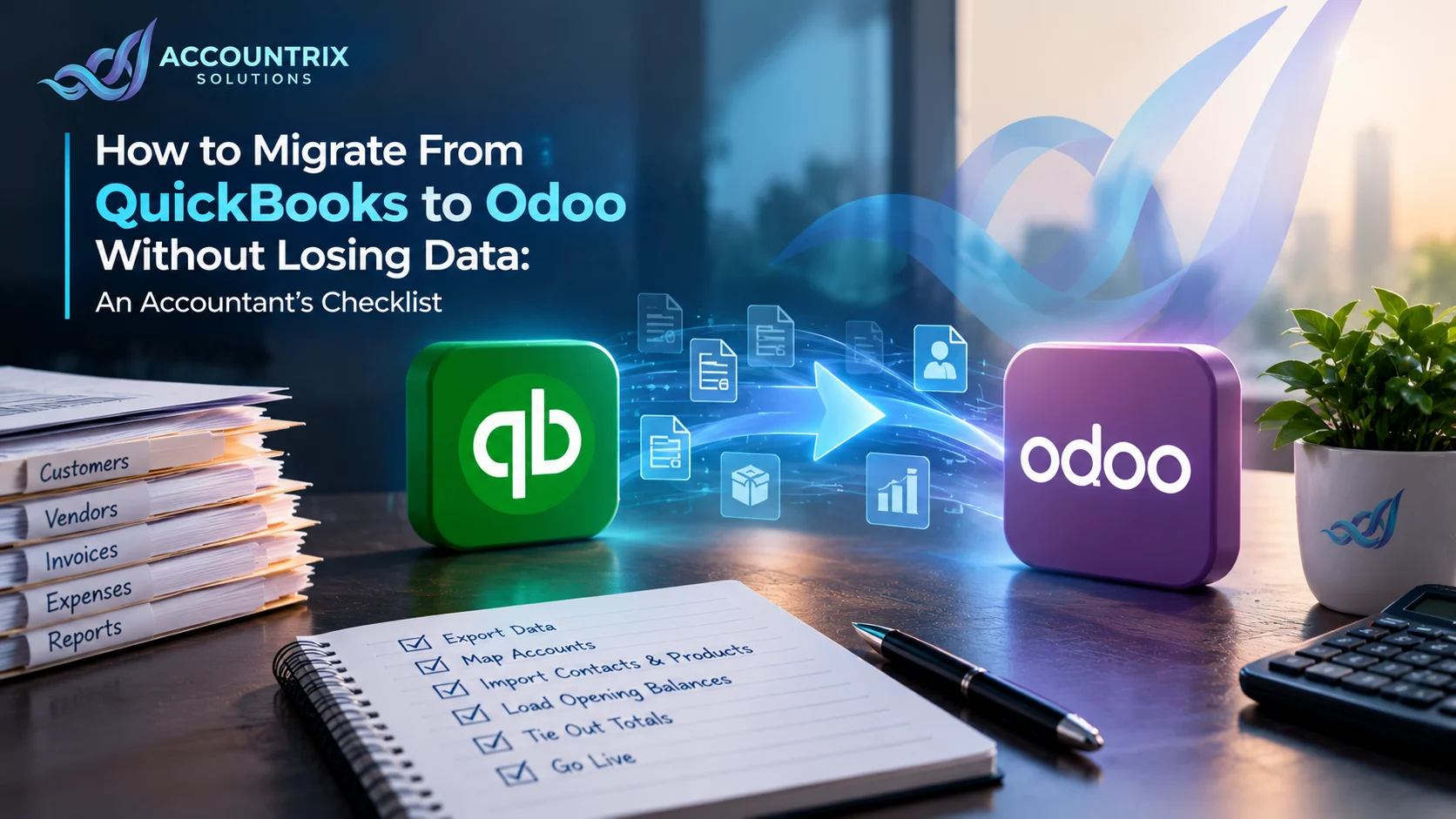
How to Migrate From QuickBooks to Odoo Without Losing Data: An Accountant’s Checklist

HomeBlogHow to Migrate From QuickBooks to Odoo Without Losing Data: An Accountant’s Checklist
How to Migrate From QuickBooks to Odoo Without Losing Data
  • October 8, 2026
  • Blog
  • 9 Views

How to Migrate From QuickBooks to Odoo Without Losing Data: An Accountant’s Checklist

The short answer

To migrate from QuickBooks to Odoo without losing data, export your QuickBooks reports and lists, match your chart of accounts to Odoo, import contacts and products, load opening balances and open invoices, then check that every total ties back to QuickBooks before you switch over. The step most people skip is that last check, and it is the one that protects your numbers.

1 Export→2 Map accounts→3 Import→4 Opening balances→5 Tie out→6 Switch

If you plan to migrate from QuickBooks to Odoo, the good news is that your financial history can come with you. The less good news is that it will not happen with one button. A clean move takes planning, a few spreadsheets, and a careful check at the end.

This guide is written the way an accountant would plan the job. It covers what to prepare, the eight steps in order, what does not transfer neatly, and how to know your books are right before you stop using QuickBooks. It applies to QuickBooks Online and QuickBooks Desktop, and the checks are the same either way.

In this guide
01What the move actually involves
02What to settle before you start
03The 8 steps, in the right order
04What does not move cleanly
05Mistakes that cost the most time
06Do it yourself or get help
07Is now the right time to leave QuickBooks
08Frequently asked questions

What does it mean to migrate from QuickBooks to Odoo?

Migrating means moving your accounting records out of QuickBooks and rebuilding them in Odoo's accounting app, so Odoo becomes the place where you create invoices, pay bills, reconcile bank accounts and run reports. You are not copying a database. You are translating one system's structure into another's, which is why mapping matters more than exporting.

Some things move easily, like customers, vendors and products. Others need a decision first, like how to treat classes, locations and years of old transactions. The list below shows how the main pieces line up.

In QuickBooks
In Odoo
Customers and vendors
→
Contacts (one record can be both)
Products and services
→
Products
Chart of accounts
→
Chart of accounts, with account types and codes
Classes and locations
→
Analytic accounting
Sales tax codes
→
Taxes and fiscal positions
Trial balance at cutover
→
Opening journal entry
Open invoices and bills
→
Open customer invoices and vendor bills
Users and roles
→
Users and access rights

What to settle before you start

Most migration problems are decided before any data moves. Settle these six points first and the rest of the job gets much easier.

Pick a cutover date. A month-end or quarter end works best because it gives you clean balances to carry over. The start of a fiscal year is even simpler.
Decide how much history to bring. Most businesses load opening balances plus open items and keep older detail in QuickBooks exports. Importing every past transaction is rarely worth the effort.
Clean up QuickBooks first. Merge duplicate customers and vendors, turn off unused accounts, and fix uncategorized transactions. Odoo will carry over whatever mess you bring.
Confirm your access. In QuickBooks Online only admin users see the Export data option, as Intuit's support team confirms, so you may need your primary admin to run the exports.
Set the scope. Are you moving accounting only, or inventory, sales and purchasing as well? A bigger scope means more data to load and more to test.
Take a full backup. Export reports, lists and attachments, and store them somewhere safe before you change anything.
“

Choose the cutover date before you do anything else. Every other number in the project depends on it.

Accountant's note

The 8 steps to migrate from QuickBooks to Odoo

These steps suit most small and mid-sized businesses. Follow them in order, because each one depends on the one before it.

01

Export your data from QuickBooks

In QuickBooks Online, open the gear icon and choose Export data, then pick the reports and lists you need and send them to Excel. Estimates, purchase orders and attachments are not part of that export, so you pull them from their own screens, as Intuit explains in its export guide.

For a standard accounting move, export these:

  • Chart of accounts
  • Customer and vendor lists
  • Products and services list
  • Trial balance as of your cutover date
  • A/R aging detail and A/P aging detail as of the cutover date
  • Inventory valuation summary, if you track stock
  • Bank reconciliation reports for the last closed period

QuickBooks Desktop users can send the same reports and lists to Excel from the Reports and Lists menus.

02

Map your chart of accounts

Compare your QuickBooks accounts with the chart of accounts that Odoo loads for your country. Where an account does the same job, reuse the Odoo one and rename it if you want to keep your old wording. Where it does not exist, create it. Odoo gives every account a type, and that type decides where the account appears in your reports, so choose it with care.

QuickBooks lets you nest sub accounts under a parent. Odoo organizes accounts through codes and groups instead, so settle on a coding scheme now. Odoo's chart of accounts guide explains how groups work.

Keep the result in a simple two-column sheet, with the QuickBooks account on the left and the Odoo account on the right. You will use it again when you load opening balances.

03

Set up accounting in Odoo

Before importing anything, configure the basics: company details, currency, fiscal year dates, taxes, payment terms, and your bank and cash journals. Installing the fiscal localization for your country gives you a starting chart of accounts and tax setup, which saves a lot of typing.

If you use QuickBooks classes or locations to track departments, projects or branches, decide now how that will work in Odoo. This is usually handled through analytic accounting, and it is far easier to set up before transactions exist than after.

04

Import contacts and products

Odoo accepts Excel and CSV files. Open the list you want to fill, use the Action menu, choose Import records, and download the template Odoo provides so the columns are already mapped. Upload your file, check the mapping, click Test, and only then click Import. Odoo's import guide walks through each click.

Customers and vendors both go into Contacts. Keep the original QuickBooks name or ID in a reference field so you can trace any record back later. Products should keep the names and SKUs you use today, with sales price, cost and tax settings checked.

05

Load your opening entries

This is where the accounting really happens. Odoo's accounting documentation says a company moving from other software needs three things in place: opening account balances, open invoices and bills, and an opening inventory count if you carry stock. It also sets three rules to respect:

  • The total of your receivable accounts must equal your open customer invoices minus credit notes
  • The total of your payable accounts must equal your open vendor bills minus refunds
  • The opening trial balance itself must balance, with debits equal to credits

Export the trial balance as of your cutover date, swap the QuickBooks account names for your Odoo accounts using your mapping sheet, and import it as a journal entry. Then enter each open invoice and bill as its own document, not as one lump sum, so aging reports and payments behave normally.

Watch for receivables and payables being counted twice, once in the trial balance and again in the open documents. That is a place where errors slip in easily, and a good reason to have an accountant review this step.

If you track inventory, load the quantity and value of each product as of the cutover date and compare the total with your QuickBooks inventory valuation summary.

06

Check that everything ties out

Before anyone creates a real transaction in Odoo, confirm each of these:

✓
The trial balance in Odoo matches the QuickBooks trial balance on the cutover date, line by line
✓
The receivable total matches your QuickBooks A/R aging total
✓
The payable total matches your QuickBooks A/P aging total
✓
Each bank account in Odoo matches its bank statement balance
✓
Inventory value matches your QuickBooks inventory valuation summary
✓
The Odoo balance sheet matches the QuickBooks balance sheet on the same date

If any line does not match, stop and find the difference before moving on. A small gap today becomes a hard-to-explain gap at year-end.

07

Run both systems side by side

Record a short stretch of real transactions in both QuickBooks and Odoo, ideally through one full month-end close, and compare the reports. This is where you find what no checklist predicted, like a tax code that behaves differently or a report your team relies on that looks different in Odoo.

Not every business has time for a full overlap. If yours does not, at least run a week of invoices, bills and bank reconciliation in both.

08

Switch over and clean up

On the cutover date, set a closing date in QuickBooks so nobody posts new entries by mistake, and make Odoo the only place where transactions are-entered. Reconnect or import your bank transactions, depending on your bank and your Odoo version, and make sure your team knows where to create invoices and record bills.

Keep QuickBooks access until your first month-end close in Odoo ties out, and store your exported files somewhere safe for audits and questions later.

What does not move cleanly

Even a careful migration from QuickBooks to Odoo leaves a few things that need a decision rather than an import. Here is how to handle the usual ones.

Classes and locations
Decide an analytic structure first, then tag opening balances and new transactions to match.
Years of old transactions
Load balances and open items, and keep older detail in your QuickBooks exports for reference and audits.
Payroll history
Keep year-to-date summaries, and decide whether payroll stays with a separate provider.
Attachments and receipts
Export them separately, as Intuit describes, then store them in Odoo or in an archive folder you can search.
Report layouts
Odoo reports look different, so rebuild the few reports your team really uses before go live.
Sales tax history
Set up taxes in Odoo from the cutover date and keep your QuickBooks tax reports for earlier periods.

Mistakes that cost the most time

  • Skipping the cleanup. Duplicate contacts and dead accounts follow you into Odoo and make every report harder to trust.
  • Importing everything. More history means more to reconcile and very little extra value.
  • Treating the trial balance as the finish line. Matching totals is the start. Open items and bank balances must match too.
  • Changing the plan midway. Moving the cutover date after balances are loaded forces you to redo the opening entries.
  • Cancelling QuickBooks too early. Keep it until your first Odoo month-end ties out.
  • Leaving the team untrained. People fall back on old habits unless they know where things live in the new system.

Should you do it yourself or get help?

A small business with one company, no inventory and tidy books can often manage with the steps above and some patience. The risk grows quickly with inventory, several currencies, more than one company, years of messy data, or a hard deadline such as a tax filing.

Doing it yourself can work if
  • You have a single company and one currency
  • You carry no stock, or very simple stock
  • Your QuickBooks books are clean and current
  • You have time to run a parallel month
Bring in help if
  • Inventory and costing need to match exactly
  • You have several companies or currencies
  • Years of cleanup are waiting in QuickBooks
  • The deadline cannot move
  • Your online store, payment tools or payroll need reconnecting

If you want an accountant involved, our Odoo migration services cover account mapping, opening balances and the tie-out checks described above. If you also need modules set up for sales, inventory or purchasing, that falls under our Odoo implementation services.

Connecting your online store, payment tools or payroll to the new books is a separate piece of work, and our Odoo integration services handle that so nothing is re-entered by hand after the move.

Is now the right time to leave QuickBooks?

Not every business should move. If QuickBooks still covers what you need, a well-run setup can serve you for years, and our QuickBooks bookkeeping services exist for exactly that situation. Moving makes sense when your operations have outgrown accounting on its own. These are the usual signs:

  • You re-enter the same data in more than one tool
  • Stock levels and sales do not match without manual work
  • Month-end depends on spreadsheets
  • You need purchasing, manufacturing or projects connected to the books

Once you are on Odoo, keeping the books accurate becomes a different routine. Our Odoo bookkeeping support takes that over, so your records stay clean after the move and not just on cutover day.

Frequently asked questions

How long does it take to migrate from QuickBooks to Odoo?

It depends on the size and tidiness of your data. A small company with clean books and no inventory can finish in a few weeks, while inventory, several companies or heavy cleanup push it longer. The side-by-side run stretches the timeline most, and it is also the step that protects you.

Will I lose my QuickBooks data?

No, as long as you export everything before changing anything and keep the files. The move copies balances and open items into Odoo, and your original QuickBooks data stays untouched until you decide to close that account.

Can I migrate from QuickBooks Desktop as well as QuickBooks Online?

Yes. The steps are the same. Only the way you export differs, since both let you send reports and lists to Excel.

Is there a one-click import tool?

Odoo's standard route is its import tool, which takes Excel or CSV files and has a Test option before you commit. Some third-party connectors exist, but check how they handle opening balances and open invoices before you rely on one.

Do I need to import every past transaction?

No. Most businesses bring opening balances, open invoices and bills, and sometimes the current year-to-date. Older detail can stay in your QuickBooks exports.

What should I check before I stop using QuickBooks?

Confirm that your trial balance, receivable and payable totals, bank balances and inventory value all match on the cutover date, and that one month-end close in Odoo produces the numbers you expect.

Final thoughts

To migrate from QuickBooks to Odoo safely, treat it as an accounting project first and a data project second. Pick a cutover date, map your accounts, load opening entries, and do not switch until every total ties back to QuickBooks.

If you want a second pair of eyes on the numbers, or someone to run the whole move, talk to the team at Accountrix Solutions. We will look at your QuickBooks file, tell you honestly how complex the job is, and plan the move with you.

Talk to our team about your QuickBooks to Odoo move →

Leave a comment Cancel reply

Top Category

  • Blog (12)

Recent Posts

Bookkeeping vs Accounting
October 14, 2026

Bookkeeping vs Accounting: Which Does Your Business Need?

Monthly Bookkeeping Checklist for Small Businesses
October 13, 2026

Monthly Bookkeeping Checklist for Small Businesses: Monthly, Quarterly and Year-End

Odoo Studio vs Custom Module
October 13, 2026

Odoo Studio vs Custom Module: Which One Should You Use?

Popular Tag

Odoo Upgrade Odoo

Related Articles

Bookkeeping vs Accounting: Which Does Your Business Need?

  • Blog
  • October 14, 2026
  • 3 Views
Bookkeeping vs Accounting

Monthly Bookkeeping Checklist for Small Businesses: Monthly, Quarterly and Year-End

  • Blog
  • October 13, 2026
  • 3 Views
Monthly Bookkeeping Checklist for Small Businesses

Odoo Studio vs Custom Module: Which One Should You Use?

  • Blog
  • October 13, 2026
  • 4 Views
Odoo Studio vs Custom Module

ACCOUNTRIX SOLUTIONS

Transforming workflows with tailored digital and accounting solutions.

Know More
Contact US

Get Started

  • Home
  • About Us
  • Blog
  • Contact

Odoo Services

  • Odoo Implementation
  • Odoo Customization
  • Odoo Integration
  • Odoo Migration

Bookkeeping Services

  • Digital invoicing
  • Odoo Bookkeeping
  • Quickbooks Bookkeeping
  • Zoho Bookkeeping

© 2026 All Rights Reserved | Designed by Ruman

Facebook Twitter Google-plus