• Home
  • About Us
  • Services
    Odoo Implementation

    At Accountrix Solutions, we provide reliable Odoo implementation services that align Odoo...

    Odoo Customization

    we understand that every business follows different processes and faces unique...

    Odoo Integration

    Odoo is a free ERP system with various business apps to assist with different operational needs. Powerful...

    Odoo Migration

    Looking to upgrade or switch your Odoo ERP version without losing critical data...

    Digital invoicing

    Generate, dispatch, and monitor invoices promptly – designed for enterprises...

    Odoo Bookkeeping

    Managing your finances doesn’t have to be overwhelming. Our Odoo accounting and bookkeeping...

    Quickbooks Bookkeeping

    At Accountrix Solutions, we tailor our QuickBooks bookkeeping services around your unique...

    Zoho Bookkeeping

    Balancing your finances in Zoho Books alongside managing your business can be overwhelming. That is where...

  • Blog
  • Contact Us
LEt's talk

Already on Zoho CRM? How to Choose Between Zoho Books and QuickBooks for Your Accounting

HomeBlogAlready on Zoho CRM? How to Choose Between Zoho Books and QuickBooks for Your Accounting
Zoho QuickBooks Integration
  • November 17, 2026
  • Blog
  • 22 Views

Already on Zoho CRM? How to Choose Between Zoho Books and QuickBooks for Your Accounting

Preview

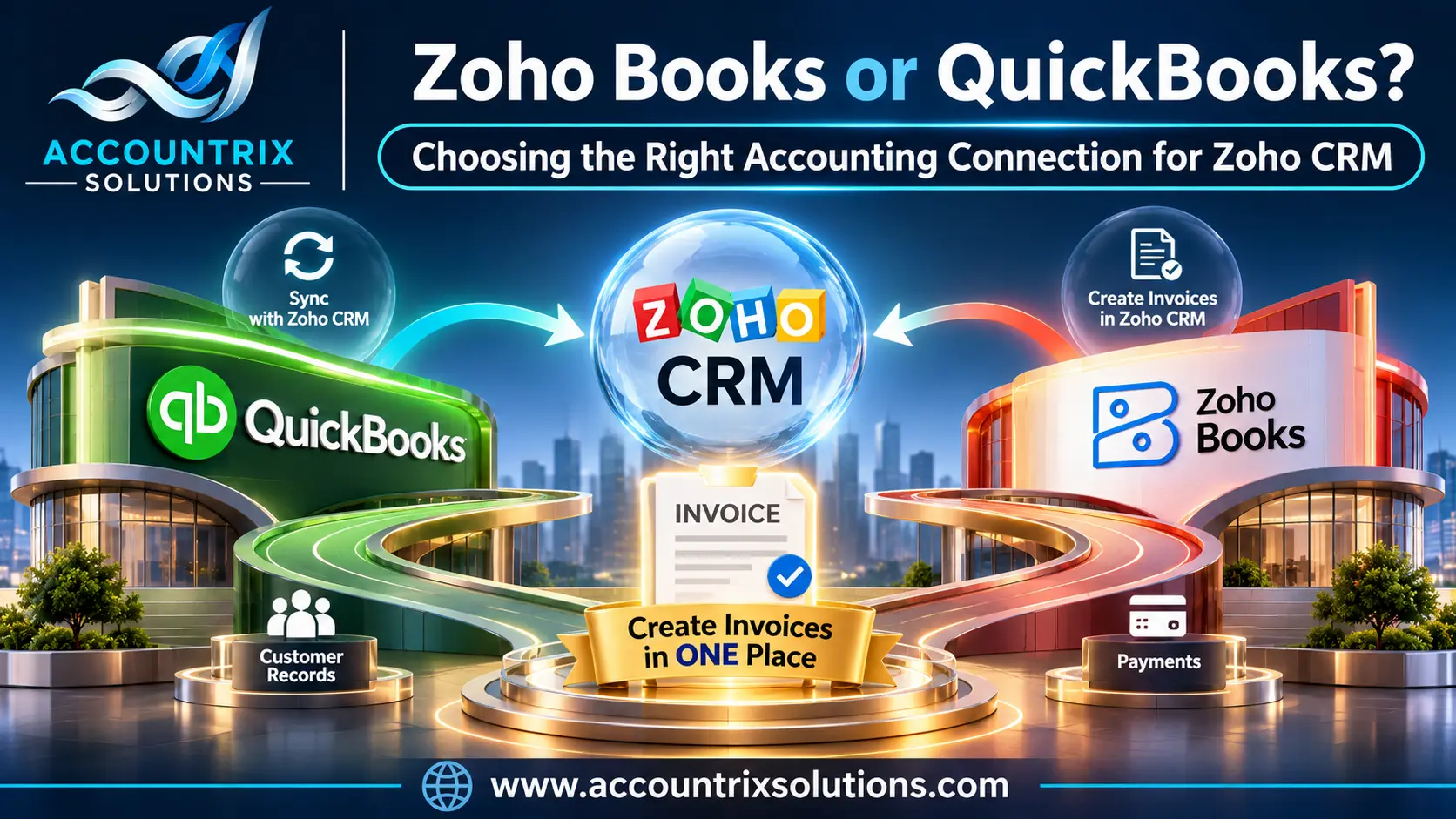
If you already run sales in Zoho CRM, you have two sound ways to handle accounting. You can keep QuickBooks and connect it through the Zoho QuickBooks integration, or you can move your books to Zoho Books and use Zoho’s own CRM connection. Keep QuickBooks when your accountant, bank feeds and payroll already depend on it. Choose Zoho Books when most of your business already sits in Zoho. The one thing to avoid is letting both systems issue invoices to the same customers.

Short version: Zoho CRM’s native QuickBooks connection syncs contacts, accounts, vendors and products both ways, but invoices only flow from QuickBooks into the CRM. The Zoho Books connection goes further and lets the CRM create quotes and invoices that land straight in your books. Pick the one that matches where you want invoices to be created.

This guide shows what each connection really moves, where books quietly split into two, and how to decide. If Zoho Books turns out to be your answer, you will also find a plan for the move. Our Zoho Books bookkeeping team works with Zoho CRM users every day, and the same rules below are the ones we follow.

Every claim about Zoho comes from Zoho’s own help pages, linked where it is used and checked in November 2026. Zoho updates these pages often, so open the page for your edition before you commit.

What to take from this guide

  • Zoho CRM has a native QuickBooks connection. It needs the Professional edition or above.
  • Quotes, invoices and purchase orders move one way only: QuickBooks to CRM, and they are read-only in the CRM.
  • The Zoho Books connection syncs customers, vendors, items and transactions, and can create an invoice when a deal is won.
  • Invoices created in Zoho CRM’s own modules do not sync to Zoho Books. Zoho itself warns that this leaves two sets of records.
  • Moving from QuickBooks Online to Zoho Books is supported by a Zoho tool, though a few items need hand work.

On this page

  • What the QuickBooks connection syncs
  • What the Zoho Books connection syncs
  • Where your numbers split in two
  • Zoho Books or QuickBooks: how to decide
  • Moving from QuickBooks to Zoho Books
  • Questions we hear most

What the Zoho QuickBooks integration syncs

Zoho now offers its own QuickBooks connection inside the CRM. Before that, teams used paid extensions or wrote custom functions. According to Zoho CRM’s QuickBooks integration guide, a Super Admin installs it from Marketplace, under Integration and then QuickBooks. One CRM account can link to one QuickBooks company at a time.

Zoho CRM moduleDirectionWorth knowing
Contacts or AccountsBoth waysYou pick one of the two, and cannot change it later
VendorsBoth waysYou can sync only a chosen view of records
ProductsBoth waysOnly products set as Inventory in QuickBooks
QuotesQuickBooks to CRM onlyLocked in the CRM, with a link back to the QuickBooks record
InvoicesQuickBooks to CRM onlySame: read-only in the CRM
Purchase ordersQuickBooks to CRM onlySame: read-only in the CRM

One change affects daily work. Once the connection is configured, your team can no longer create native Quotes, Invoices or Purchase Orders in the CRM. Billing documents are born in QuickBooks and the CRM only shows them. For a finance person this is good news, because there is a single place where an invoice number gets issued.

Limits to check before you click Install

  • Edition. Zoho CRM Professional or above.
  • Home currency. It must be identical in the CRM and in QuickBooks. Records with a mismatch land in an error list.
  • Product type. Only Inventory products sync. If you sell mostly services, your service items will not travel.
  • Name clashes. QuickBooks refuses a name that another customer, vendor or employee already uses, and the CRM record then fails to sync.
  • Deletes. If someone deletes an inventory record in QuickBooks, it is permanently deleted from the CRM as well.
  • Version. Zoho’s guide describes QuickBooks Online. If you use QuickBooks Desktop, ask Zoho support before assuming it works.

Zoho Marketplace also lists third-party tools, such as the QuickBooks Online for Zoho CRM extension. If one is already installed in your account, compare it with the native option before you renew it, and check who supports it. People searching for a Zoho to QuickBooks integration often find these first.

What the Zoho Books and Zoho CRM connection syncs

This is the connection Zoho builds for its own finance apps. You switch it on from Zoho Books under Settings, then Zoho Apps, and Zoho says a two-way sync is set up by default in its Zoho Books and Zoho CRM integration guide.

Customers, vendors and items

CRM Accounts become business customers in Zoho Books, and CRM Contacts become individual customers. If you choose “Accounts and their Contacts”, the accounts become customers and the contacts become contact persons. Zoho finds duplicates by comparing the CRM Account Name with the Books Customer Display Name, and lets you clone, overwrite or skip them.

After the first sync, new accounts, contacts, vendors and products move every two hours. Transactions move instantly. Inventory tracking exists only in Zoho Books, so stock quantities show up in the CRM but are never edited there.

Quotes and invoices from a deal

Once you enable Sync Transaction Modules, quotes, invoices, sales orders and purchase orders appear in a Zoho Finance module inside the CRM. You can also set triggers: a quote is created in draft when a deal reaches a stage you choose, and an invoice is created when the deal is won. If the deal is later lost, that invoice is voided.

Check the draft before it goes out. Zoho maps the deal name to the item name and the deal amount to the item rate. You get one line, not a full itemised invoice. Also, once an invoice or quote is marked Sent, later changes to the deal no longer trigger anything.

The catch with the CRM’s own invoices

Zoho CRM has native Quotes, Invoices, Sales Orders and Purchase Orders of its own. Zoho’s page on working with the integration inside Zoho CRM warns that these do not sync with the Zoho Finance module, so you end up with two sets of transactions for the same accounts. A custom function can bridge them, but that is extra work to build and to maintain.

Two smaller points. On the Free edition of Zoho CRM, only the account, contact and vendor sync is available, because there is no Products module, as Zoho’s FAQ on CRM editions explains. And if you ever disable the connection with transaction sync on, Zoho deletes the custom reports, comments and attachments attached to those transactions in the CRM. Your Zoho Books transactions stay.

Where your numbers split in two

A CRM that talks to accounting is useful. A CRM that talks to two accounting systems is where books drift apart without anyone noticing. This is where we look first when someone asks us to review a Zoho and QuickBooks setup:

  • Invoices born in two places. Someone bills from the CRM’s native module while another person bills from Zoho Books or QuickBooks. Nothing links the two.
  • One customer, two names. Say “Acme Inc” in the CRM and “Acme, Inc.” in the ledger. Duplicate checks run on names, so you get a second customer or a failed sync.
  • Payments recorded in one place only. The other system keeps showing the invoice as unpaid, and your receivables report disagrees with itself.
  • Different base currencies. Zoho requires them to match for the sync to work properly.
  • Different product lists. The QuickBooks connection carries Inventory products only, so service lines get typed by hand and spelled differently.
  • Deletes that travel. A clean-up in one system can remove records in the other when delete sync is on.

A 15-minute tie-out each month

  • Compare total open receivables in the CRM’s finance view with your accounting report.
  • Count the invoices issued this month in each place. The numbers should match.
  • Open the sync history in Zoho Books, or the error records list in Zoho CRM, and clear what is stuck.
  • Scan for new duplicate customers before they collect transactions.

Our rule is simple. One place where invoices are created, one place where payments are recorded, and one system that owns the customer list. Everything else follows from that.

Zoho Books or QuickBooks: how to decide

Ask where invoices and payments should be created, then work backwards. This table covers the situations we meet most.

Your situationLean towardWhy
Accountant, payroll and bank feeds already run on QuickBooks OnlineQuickBooksMoving costs more than the sync problem it solves
Most of your tools are Zoho, and nobody outside needs QuickBooksZoho BooksOne vendor, one login, one connection to maintain
Sales should create quotes or invoices from a dealZoho BooksDeal-stage triggers are documented for Books
Finance wants invoices created only in the accounting systemQuickBooksCRM copies are read-only
You sell mostly servicesZoho BooksThe QuickBooks connection syncs Inventory products only
You use QuickBooks DesktopCheck firstZoho’s guides describe QuickBooks Online
Zoho CRM Free editionUpgrade firstFree allows limited sync, and the QuickBooks route needs Professional

Price matters too, but compare the total. Count both subscriptions, the CRM edition each route needs, and the hours someone spends fixing sync errors. Then check the current pricing page of each vendor.

Keep QuickBooks if

  • Your accountant works inside it daily
  • Other apps, such as payroll or payment tools, connect to it
  • Your books are clean and the history matters
  • You only need contacts and invoice status inside the CRM

Choose Zoho Books if

  • You want deals, quotes and invoices in one flow
  • Your team already lives in Zoho apps
  • You are tired of paying for two logins and two vendors
  • Your QuickBooks setup is already due for a clean-up

If you decide to stay, the work shifts to keeping QuickBooks tidy so the sync does not carry bad data. Our QuickBooks bookkeeping support covers that, including the monthly tie-out above.

Moving from QuickBooks to Zoho Books

Zoho provides a migration tool for QuickBooks Online. As described in Zoho’s QuickBooks Online migration guide, you export everything from QuickBooks as a ZIP file, then import it into Zoho Books. It brings across the chart of accounts, customers, vendors, products and services, opening balances, receivables and payables, sales and purchase transactions, and journals.

What needs hand work

Zoho lists a few limitations of the QuickBooks migration. These are the ones we plan for:

  • Inactive customers, vendors and items arrive as active, with the word “(Deleted)” added. Search for it and mark them inactive.
  • Accounts that share a name with Zoho’s default accounts are not imported.
  • Bundle items become composite items only if the Zoho Inventory add-on is on.
  • The Unit field is not imported, so items arrive with “Others”.
  • Invoices with no number get an automatic number like QBO-INV-1.

The tool moves accounting data. Payroll, payment processors and other apps tied to QuickBooks are separate jobs, so list them before you pick a cutover date.

A six-step switch plan

  1. Clean QuickBooks first. Merge duplicate customers, clear uncategorised transactions and finish bank reconciliations. Do not import a mess. Our guide to fixing messy QuickBooks books step by step shows how.
  2. Choose a cutover date. A month-end works best. Export your QuickBooks reports for the archive and keep read access.
  3. Set up the Zoho Books organization. Fill in the profile, add your taxes and set a base currency that matches your CRM.
  4. Import and tie out. Run the migration, then compare trial balance and receivables and payables aging with QuickBooks.
  5. Connect the CRM. Zoho’s order is customers, vendors and items first, then transaction modules. Map fields and choose a duplicate rule before the first sync.
  6. Close one month in parallel. Reconcile the bank accounts in Zoho Books, then stop billing from QuickBooks.

Steps three to six are where mistakes creep in. Our team can run them with you, from Zoho Books setup to the first monthly closes, so the CRM connection starts on clean data.

Questions we hear most

Can you integrate Zoho with QuickBooks?

Yes. Zoho CRM has a native QuickBooks integration for Professional editions and above. It syncs contacts or accounts, vendors and products both ways, and imports quotes, invoices and purchase orders from QuickBooks.

Does a Zoho and QuickBooks integration create invoices in the CRM?

No. After the connection is configured, native Quotes, Invoices and Purchase Orders can no longer be created in Zoho CRM. They are created in QuickBooks and shown in the CRM as read-only records.

Can I use Zoho CRM with Zoho Books and QuickBooks at the same time?

Technically you can run both, but a CRM account links to one QuickBooks company, and your customers would exist in two ledgers. Keep both only for a short parallel period during a move.

How often does Zoho CRM sync with Zoho Books?

Accounts, contacts, vendors and products sync every two hours after the first sync. Transactions sync instantly, and you can trigger an instant sync from either app.

Will I lose my QuickBooks data if I switch to Zoho Books?

No, as long as you export it before closing QuickBooks. Zoho’s tool imports the accounting data listed above, so keep your exported reports as an archive and check the limitations page for anything that needs manual fixing.

Is Zoho Books better than QuickBooks for Zoho CRM users?

It depends on the business. Zoho Books gives you a wider native connection with deal-stage triggers. QuickBooks makes more sense when your accountant and other apps already rely on it.

Final thoughts

A Zoho to QuickBooks integration works well when QuickBooks stays your single source for invoices, and the CRM only reads them. Zoho Books fits when you want the sales-to-invoice flow in one family of apps. In both cases, the books stay trustworthy only if invoices are created in one place, so decide that first and build the sync around it.

Not sure which route fits your business? Tell us what you use today and where you want invoices to start, and we will tell you what to check first.

Talk to us about your Zoho and QuickBooks setup

Leave a comment Cancel reply

Top Category

  • Blog (43)

Recent Posts

Zoho Books vs Zoho Inventory vs Zoho Billing
November 6, 2026

Zoho Books vs Zoho Inventory vs Zoho Billing: Which One Do You Actually Need?

QuickBooks Multi State Sales Tax
November 25, 2026

QuickBooks Multi State Sales Tax Online: Nexus, Rates and Filing Setup

QuickBooks Online Classes vs Locations
November 5, 2026

QuickBooks Online Classes vs Locations: When to Use, & When Not to

Popular Tag

Odoo Upgrade Odoo

Related Articles

QuickBooks Multi State Sales Tax Online: Nexus, Rates and Filing Setup

  • Blog
  • November 25, 2026
  • 6 Views
QuickBooks Multi State Sales Tax

Odoo Fixed Assets and Depreciation: Setup, Models and Disposals

  • Blog
  • November 24, 2026
  • 6 Views
Odoo Fixed Assets

Odoo Timesheet Invoicing: How to Bill Clients by the Hour Without Spreadsheets

  • Blog
  • November 23, 2026
  • 8 Views
Odoo Timesheet Invoicing

ACCOUNTRIX SOLUTIONS

Transforming workflows with tailored digital and accounting solutions.

Know More
Contact US

Get Started

  • Home
  • About Us
  • Blog
  • Contact

Odoo Services

  • Odoo Implementation
  • Odoo Customization
  • Odoo Integration
  • Odoo Migration

Bookkeeping Services

  • Digital invoicing
  • Odoo Bookkeeping
  • Quickbooks Bookkeeping
  • Zoho Bookkeeping

© 2026 All Rights Reserved | Designed by Ruman

Facebook Twitter Google-plus