
Odoo Sales Tax Setup for US Businesses: What to Configure and What to Watch
An Odoo sales tax setup for a US business comes down to four things: the United States localization installed, the right tax for each jurisdiction (or a tax engine such as AvaTax that finds it for you), fiscal positions that decide which customer gets which tax, and a tax payable account you check against your returns. Odoo calculates only what you configure, and it does not decide where you owe tax. You do that first, ideally with your CPA. This guide shows what to configure, in what order, and which mistakes show up most often in US databases.
How US sales tax works, and why Odoo needs your input
The United States has no federal sales tax. States set their own rules, and many cities and counties add tax on top. So the rate you charge depends on where the sale goes, what the product is and who the buyer is.
You collect tax only in states where you have nexus, meaning a link strong enough that the state can make you collect its tax. Since the Supreme Court’s Wayfair decision in 2018, that can include a state where you have no office, once your sales or transactions there pass a threshold. Most states also have marketplace facilitator laws, which make the marketplace collect and remit tax on sales made through it, as this MTC report describes. Thresholds and rules differ by state, so confirm yours before you configure anything.
Start with the United States fiscal localization
In Odoo, open the Accounting settings, find the Fiscal Localization section and set the package to United States. This loads a chart of accounts built on the GAAP structure. The Odoo docs on the US localization add that default sales and purchase taxes are created when the Accounting app is installed. Treat those as a starting point. Tax rates and what counts as taxable vary by jurisdiction, so the defaults will not match every address you sell to.
The localization also offers optional modules:
- US accounting reports for US-style financial reports
- 1099 reporting, which exports 1099 data for e-filing with a third party
- Avatax, the connection to Avalara’s tax calculation service
Set the company country and currency before you create any transactions. If you plan to use AvaTax, the fiscal country must be the United States or Canada.
Three ways to calculate sales tax in Odoo
| Method | How it works | Best when | Watch for |
|---|---|---|---|
| Manual taxes | You create one tax for each jurisdiction you collect in and set it as the default on products. | You sell in one to three states with simple rates. | Rates change, and every city or county rate adds work. You update them by hand. |
| Fiscal positions | Rules that swap the default tax for another, based on the customer. | Exempt buyers, exports, and states where you do not collect. | They are only as accurate as your customer records. |
| AvaTax integration | Odoo sends the order or invoice to Avalara and gets back the tax for that address. | You ship to many states, or sell through an online store. | It needs an Avalara account, and you should check that your Odoo plan includes the module. |
Odoo’s documentation says the AvaTax integration gives real-time, region-specific tax calculation when you sell, buy and invoice in Odoo. It is available for databases or companies located in the United States and Canada, and separate modules cover sales orders, subscriptions and eCommerce checkout. If your orders come from Shopify, Amazon or a custom store, our Odoo integration services team can connect those orders and your tax engine, so the right tax lands on each invoice.
Configure sales tax in Odoo, step by step
- Confirm the basics. Company country, currency and fiscal country should all be set correctly.
- Install the United States localization if it is not there yet.
- List your nexus states, with your CPA, and note which ones use destination-based rates.
- Create a tax for each jurisdiction you collect in. Name it so anyone can read it, for example “Example State 5.00%”.
- Set the tax type and computation. Use Sales as the type and Percentage of Price as the computation. Leave “Included in Price” off if your prices are shown before tax.
- Check the tax group and accounts. Collected tax should post to a Tax Payable liability account.
- Set default taxes on products or product categories.
- Create fiscal positions for exempt customers and for states where you do not collect.
- Test with real examples: one order per state, one exempt customer, one refund.
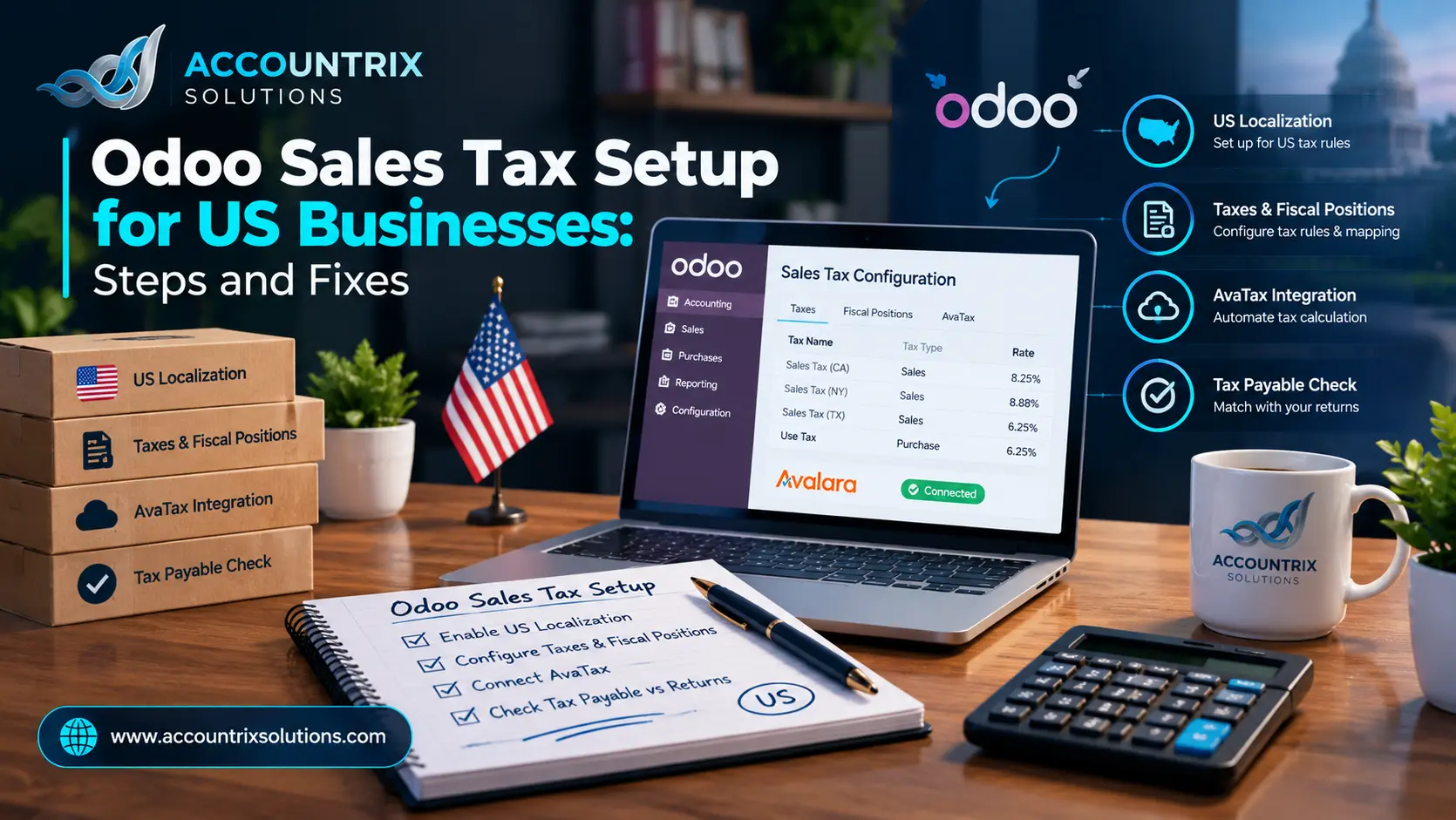
This is how a simple tax record can look. The numbers are an example, and field names can differ slightly between versions.
Doing this on a live database is risky, because a wrong tax posts to every invoice until someone notices. Our Odoo implementation services team sets up taxes and tests them before go-live.
Fiscal positions: who gets which tax
A fiscal position is a set of rules that swaps the default tax on a product for another tax. It can also remap accounts. You assign it to a customer, and Odoo applies it on their orders and invoices. These are the cases US businesses use most:
Maps sales tax to an exempt or zero tax. Keep the resale certificate on file.
Applies no tax, while you keep watching sales in that state.
Applies no US sales tax. Confirm the treatment with your CPA.
Applies a zero tax once you hold the right exemption certificate.
Products, shipping, discounts and refunds
- Products: taxability depends on the state and the product type. Set the tax on the product or product category. With AvaTax, each product or category carries a tax code.
- Shipping: some states tax shipping and some do not. Give your delivery product the tax that matches the state’s rule.
- Discounts: tax is figured on the price after the discount, so check that your discounts are applied before tax.
- Refunds: use a credit note, so the tax reverses in the same jurisdiction. Never delete a posted invoice.
- Exemption certificates: store them with the customer record, and renew them when they expire.
Online stores, marketplaces and special cases
When AvaTax is connected, a separate eCommerce module can calculate tax at checkout in Odoo’s online store. Orders that come from a marketplace need care. The marketplace usually collects the tax on those sales, so record them without adding your own tax on top, and keep the marketplace’s tax reports.
Some cases do not fit standard tax rules: bundles that mix taxable and exempt items, tax that depends on product and customer type together, or imported orders that carry their own tax lines. For those, you may need a custom rule, and our Odoo customization services team can build it so it survives upgrades.
Reporting and paying: keep the tax payable account honest
Sales tax you collect is not your income. It is money you hold for a state. Run this check every filing period:
- Pull the tax report or the Tax Payable ledger for the period.
- Compare tax collected, state by state, with the numbers on your return.
- Filter for invoices with zero tax and make sure each one has a reason.
- Review credit notes, so refunds reversed the right tax.
- Record the payment from your bank and reconcile it to the tax payable balance.
- Confirm that the balance left over is only what you still owe.
- Keep returns and reports with your records.
It is the kind of monthly review our Odoo bookkeeping services team does for US companies, so a tax problem shows up as a number in one month, not as a notice later.
Moving your tax setup from QuickBooks or another system
If you are switching to Odoo, carry these over deliberately:
- Active tax rates, and the states they belong to
- Customers marked exempt, with their certificates
- Open invoices, with the tax already charged
- The tax payable balance on the cutover date
Then compare the tax payable balance in Odoo with the old system on that date. They should match to the cent. Our Odoo migration services team handles this comparison as part of a move.
Common sales tax mistakes in Odoo
Charging tax in a state where you have no nexus.
InsteadConfirm nexus first, and register before you collect.
Using one tax rate for every order.
InsteadUse jurisdiction taxes or a tax engine that works by address.
Posting collected tax to income.
InsteadPost it to a Tax Payable liability account.
Skipping exemption certificates.
InsteadKeep a valid certificate with each exempt customer.
Deleting invoices to fix a tax error.
InsteadIssue a credit note and a corrected invoice.
Never comparing Odoo to your returns.
InsteadReconcile tax payable every filing period.
When to ask for help with Odoo sales tax
You can manage a one-state setup yourself. Ask for help when you sell in several states, run an online store, import marketplace orders, or find that tax payable never matches your returns. A short review can show where tax is going wrong before a state notice does. If that sounds familiar, talk to our team and we will tell you honestly what needs fixing. This guide is general information, not tax advice, so confirm state rules with your CPA or the state tax agency.
Frequently asked questions
How do I set up sales tax in Odoo for a US business?
Install the United States localization, decide where you have nexus, create a tax for each jurisdiction you collect in, set default taxes on products, add fiscal positions for exempt customers and states without nexus, and test with sample orders. Or connect a tax engine such as AvaTax to calculate by address.
Does Odoo calculate US sales tax automatically?
Odoo creates default taxes with the US localization, but US rates and taxability vary by jurisdiction. For automatic calculation by address, use the AvaTax integration, which Odoo supports for databases located in the United States and Canada.
What is a fiscal position in Odoo?
It is a set of rules that maps the default taxes on a product to other taxes, and can also map accounts. You use it for exempt customers, states where you do not collect, and exports.
Does Odoo work with Avalara AvaTax?
Yes. It needs an Avalara account, and extra modules cover sales orders, subscriptions and eCommerce checkout. Check that your Odoo plan includes it before you plan around it.
Where do I record the sales tax I owe?
In a Tax Payable liability account, not in income. When you pay a return, record the payment against that account so the balance shows only what is still due.
How do I handle tax-exempt customers?
Keep their certificate on file, and give them a fiscal position that maps sales tax to an exempt or zero tax. Check each state’s rules for which certificate you need.
Do I collect sales tax on marketplace sales?
In most states the marketplace collects and remits it. Do not add your own tax on top, keep the marketplace’s reports, and confirm your states’ rules with a CPA.
Final thoughts
A clean Odoo sales tax setup follows one order: decide where you owe tax, load the US localization, create the right taxes, assign fiscal positions, test, and then compare tax payable to your returns every period. Most problems come from skipping one of those steps, not from Odoo itself. Get the order right once, and sales tax becomes a routine check instead of a yearly scramble.
Not sure your Odoo sales tax setup is right? Tell us which states you sell in and how your orders arrive, and we will tell you what to check first.
Tell us how your Odoo sales tax is set up


Leave a comment